Khaqan
Google Workspace single sign-on for Odoo, with two factor authentication and role based access
Start with a test account and a recovery path, then work through the access model.
In this story
- What you need
- Before anything else: the lockout risk
- 1. Create the OAuth client in Google Cloud
- 2. Install and configure auth_oauth in Odoo
- 3. Link existing users
- 4. Enforce 2-Step Verification in the Admin console
- 5. People who are not in Workspace
- 6. Map Odoo groups to job roles
- 7. Remove password logins for SSO users
- 8. Odoo's built-in two factor for local accounts
- 9. Review the login records
- 10. Roll it out in the right order
- Common questions
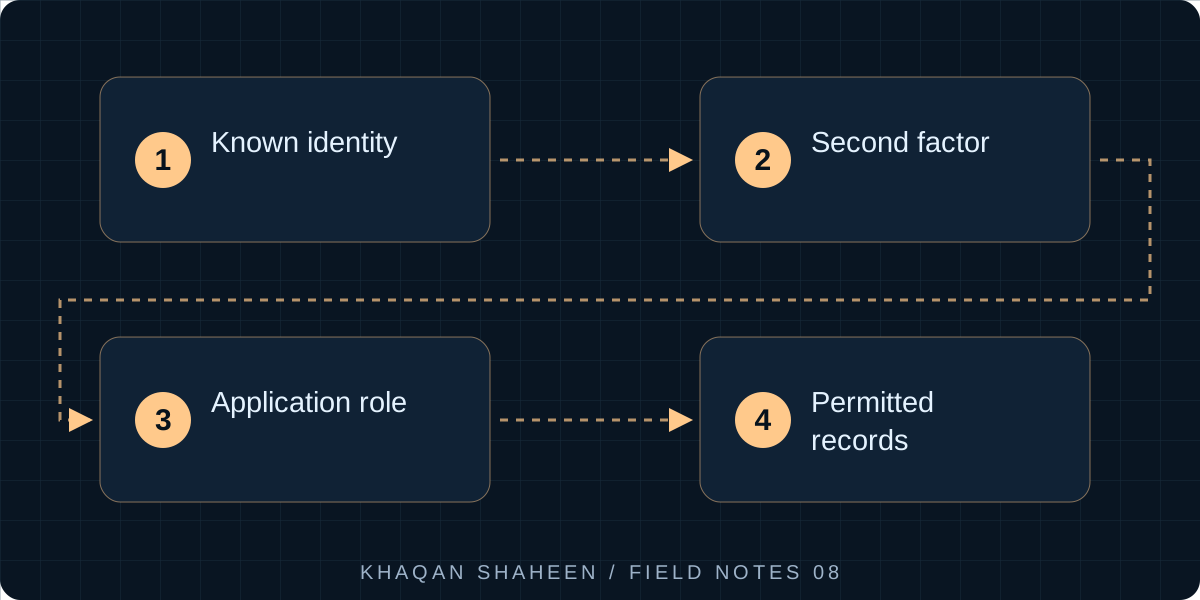
- 01Known identity
- 02Second factor
- 03Application role
- 04Permitted records
By the end of this your Odoo 17 users will sign in with their Google Workspace account, protected by 2-Step Verification enforced in the Admin console, with access inside Odoo following their job role, and you will still be able to get in if Google cannot. It is for IT heads who run both systems.
What you need
- Odoo 17, Community or Enterprise, served over HTTPS on a hostname users reach by name
- Google Workspace with super admin rights
- Access to the Google Cloud console for the same organisation
- A list of every Odoo user, their email address and their job role
- One local Odoo administrator account that will never be linked to Google
Before anything else: the lockout risk
Single sign-on concentrates risk. If the OAuth client is deleted, Workspace has an outage, or a 2-Step Verification enforcement date arrives before people have enrolled, nobody gets into the ERP. So before the first step:
Create a break-glass administrator in Odoo. A local login, not a Google one, with a long random password kept somewhere physical that two named people can reach. Put Odoo's own two factor on it (step 8) and keep its recovery codes with the password. Test it on a schedule and alert on every login to it; a login to that account is either you or a problem.
Do the same on the Workspace side: at least two super admins, each with a security key or backup codes stored offline. I have seen an enforcement date arrive for people who ignored the enrolment emails, and the ones who suffered had no plan for it.
1. Create the OAuth client in Google Cloud
In the Google Cloud console, in a project that belongs to your Workspace organisation:
- Open APIs & Services, then the OAuth consent screen (newer console layouts put it under Google Auth Platform). Set the user type to Internal; this is what limits sign-in to accounts in your Workspace, and it is the one setting you must not get wrong.
- Open Credentials, Create credentials, OAuth client ID, application type Web application.
- Authorised JavaScript origins:
https://<odoo-host> - Authorised redirect URIs:
https://<odoo-host>/auth_oauth/signin - Save and copy the client ID; the secret is not needed for Odoo's default Google provider.
No API needs enabling for sign-in. The hostname must match what users type, scheme included; an http:// address or a different subdomain fails with a redirect mismatch error.
2. Install and configure auth_oauth in Odoo
- Settings, General Settings, Integrations. Tick OAuth Authentication and save; this installs the
auth_oauthmodule. - The Google Authentication option appears under it. Tick it, paste the client ID, save.
- Check that the system parameter
web.base.urlis your HTTPS hostname and setweb.base.url.freezetoTrueso a login from another address cannot change it; Odoo builds the redirect to Google from it.
Open the login page in a private window and a "Log in with Google" button appears under the password form. Don't use it yet; existing users are linked in step 3.
3. Link existing users
Odoo ties a Google identity to a user by storing Google's subject identifier in oauth_uid on res.users, with oauth_provider_id. Matching is on that identifier, not email, so an existing user who clicks the Google button gets access denied until the link exists.
Two ways to create it. The user-driven way: send each user a password reset from Settings, Users, the Action menu. The page that email opens carries a signup token, and the Google button on it links the account instead of creating one; this is the method I use for rollout because it needs nothing from IT beyond sending the email. The admin-driven way: set oauth_uid yourself from the user's ID in the Admin SDK Directory API, which is the same value.
Keep the Odoo login equal to the Workspace email, and leave sign-up on invitation only under Settings, General Settings, Users; an internal ERP should never create a user because someone signed in.
4. Enforce 2-Step Verification in the Admin console
In the Admin console: Security, Authentication, 2-Step Verification. Do it per organisational unit, in rollout order, not for the whole domain at once.
- Allow users to turn on 2-Step Verification, if it is not already allowed.
- Set Enforcement to "On from" a date, with a new-user enrolment period so joiners get a grace window.
- Under Methods, choose "Any except verification codes via text, phone call" if your workforce can manage the Google prompt or an authenticator app; text messages are the weakest method.
- Allow users to trust a device, or the daily prompt will drive the shop floor to find a way round it.
Before the date, filter the Users list on 2-Step Verification enrolment and go and find the ones who have not enrolled. Two factor across a manufacturing workforce is a people problem before it is a technical one: not everyone has a company handset, the enrolment support is the project, and the configuration takes an afternoon.
5. People who are not in Workspace
Contractors, auditors, an outsourced bookkeeper. Three choices, in order of preference:
- Give them an account in your tenant. Cloud Identity Free accounts sit in the same organisation without a Workspace licence, go in a Contractors organisational unit with 2-Step Verification enforced, and are suspended the day the contract ends.
- Keep a local Odoo account for them with Odoo's own two factor (step 8) and a review date in your calendar.
- Shared accounts: never. If you find one, remove it first.
6. Map Odoo groups to job roles
Odoo expresses access as groups, record rules and model access lists. Write the role matrix before touching a user: one row per job role, one column per Odoo application, the group in each cell (Sales: User: Own Documents Only; Inventory: User; Accounting: Billing). Agree it with the manager who owns each set of data, because a role model nobody agreed to is bypassed within a month.
Then apply it. Set Default Access Rights under Settings, General Settings, Users to the least you give anyone, so a new user starts from the floor. If you want roles as records rather than a spreadsheet, the OCA module base_user_role does that.
7. Remove password logins for SSO users
Odoo 17 has no switch to disable password login for one user, so make the password unknown. From an Odoo shell (./odoo-bin shell -d <db>):
import secrets

admin = env.ref('base.user_admin')
sso_users = env['res.users'].search([
    ('oauth_uid', '!=', False),
    ('share', '=', False),
    ('id', '!=', admin.id),
])
for user in sso_users:
    user.write({'password': secrets.token_urlsafe(32)})
env.cr.commit()
Run it after the users are linked, never before, and never on the break-glass account. Then turn off the Password Reset option under Settings, General Settings, Users, so nobody can give themselves a password back.
8. Odoo's built-in two factor for local accounts
Any account that still logs in with a password, the break-glass admin above all, gets Odoo's own two factor. The module is auth_totp, installed by default in 17: the user opens Preferences, then Account Security, then Enable two-factor authentication, scans the QR code with an authenticator app and confirms. Odoo 17 also ships auth_totp_mail_enforce, which demands a second factor from every user and falls back to a code by email; use it if local accounts are more than a handful. Do not switch it on for Google-linked users, whose second factor is Google's.
9. Review the login records
Odoo writes a row to res.users.log on each successful login, but an automatic clean-up keeps only the latest row per user, so it tells you who last logged in, not a history. login_date on res.users says the same and is easier to query:
SELECT login, login_date
FROM res_users
WHERE active AND NOT share
ORDER BY login_date DESC NULLS LAST;
The users at the bottom of that list, and the ones with no date at all, are your dormant account review. For a real history use the Workspace side: Reporting, Audit and investigation, Login log events, filterable by user, application and outcome, with suspicious login flags. For an Odoo-side history, keep the reverse proxy's access log for /auth_oauth/signin.
10. Roll it out in the right order
- IT first. Link your own team, enforce 2-Step Verification on the IT organisational unit, and live with it for a couple of weeks, so the redirect mistakes and trusted-device questions land on you.
- One department next, chosen for a manager who wants it and users who sit at desks. Fix what they find.
- Everyone else, one organisational unit at a time, with the enforcement date announced, enrolment sessions where people work, and someone on the floor on the day.
- Then step 7 for each unit, once every user in it has signed in with Google at least once.
Leavers become a role change in one place: suspend the Workspace account, and the Odoo login stops the same minute because there is no password to fall back on.
Common questions
What happens to Odoo if Google is down?
Nobody signs in through Google until it is back, and open sessions keep working until they expire. That is the reason the break-glass account exists as a local login with Odoo's own two factor. In a long outage an administrator can set temporary passwords for a few key users and remove them afterwards.
Can I use Google groups to assign Odoo groups automatically?
Not out of the box. Odoo's Google provider reads identity, not group membership. A sync that reads the Directory API and sets groups_id on res.users from your role matrix is worth writing above a few hundred users; below that, the role matrix and a good joiner process do the same job with less to break.
Does enforcing 2-Step Verification in Workspace protect Odoo?
Yes, for every user who signs in only through Google, because Odoo never sees their password. It does nothing for accounts that still have a working password, which is why step 7 removes those and step 8 covers the ones that remain. A user with a Google link and a known password has two doors, and the weaker one is the one an attacker uses.